
Workspace includes a built-in website designer that allows you to create and customise your website pages without needing coding knowledge.
This guide explains how the website builder is structured and introduces the different elements you can use to build your pages.
How the Website Builder Works
Pages in Workspace are built using three main components:
Sections → Columns → Widgets
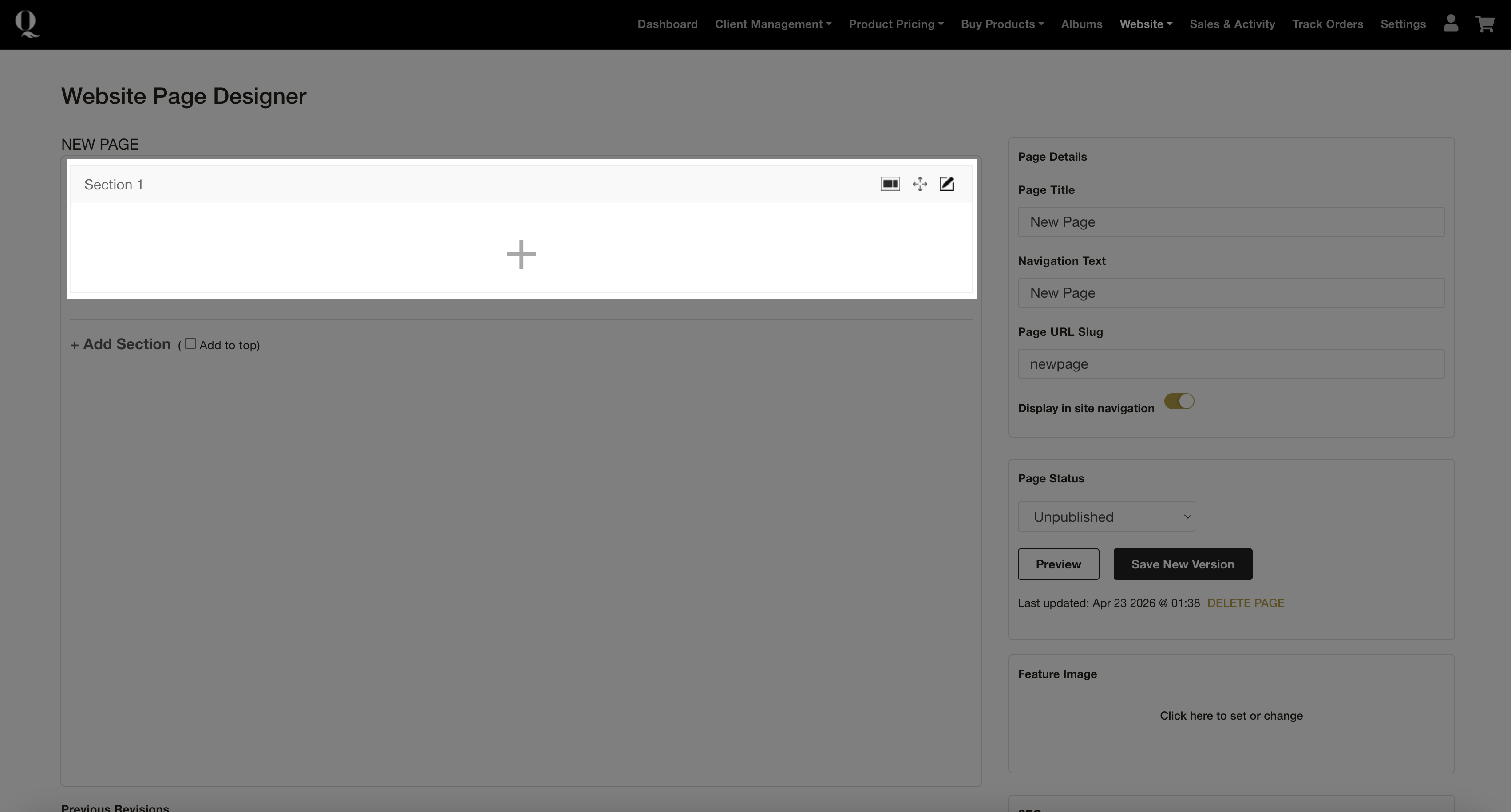
Sections (Page Structure)
Sections are the main building blocks of your page.
- Each section acts as a horizontal block across your page
- You can stack multiple sections to build your layout
- Sections help organise your content into clear areas
Columns (Layout Within Sections)
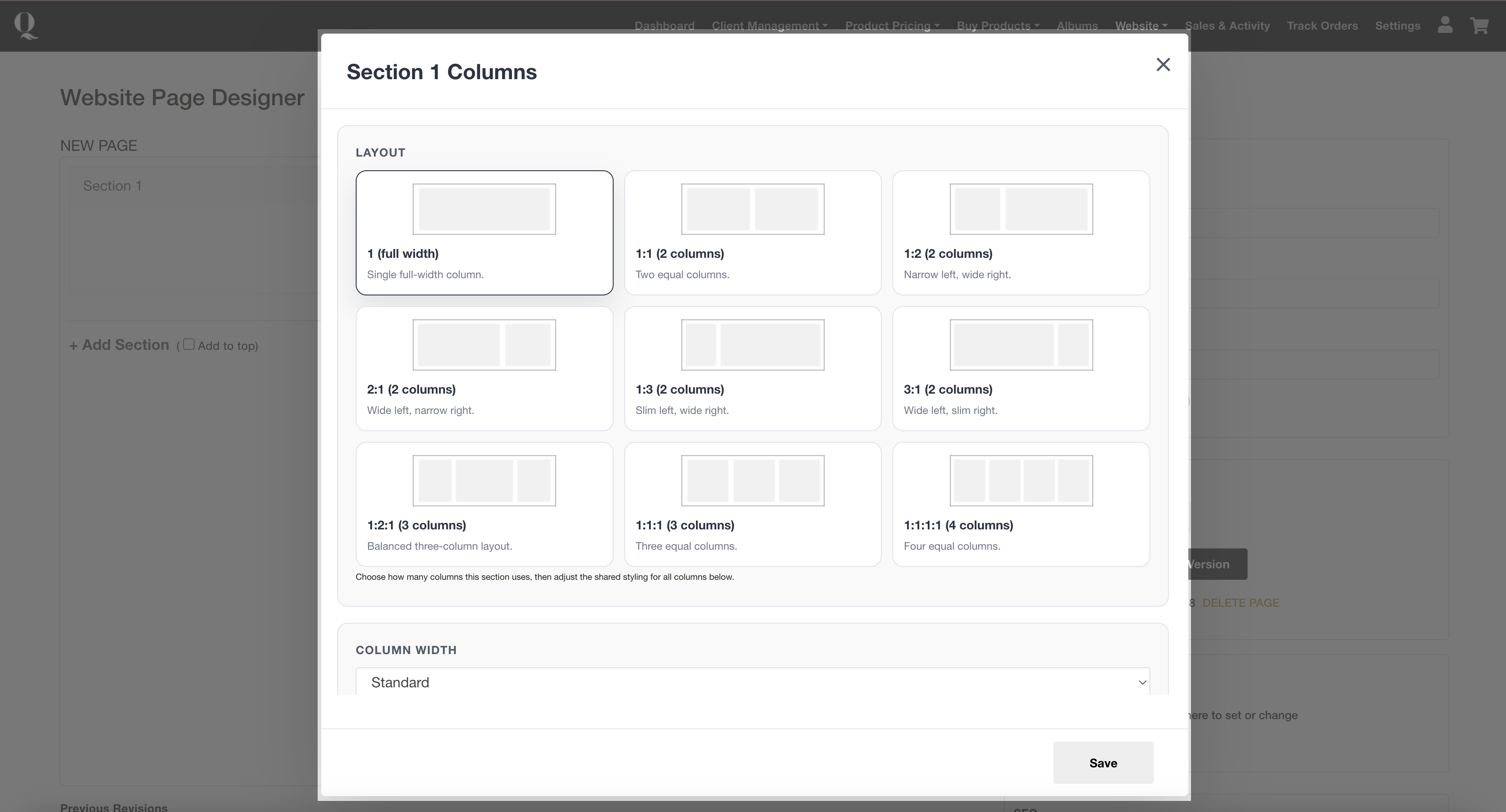
Each section can be divided into columns.
- Choose between 1, 2, or 3 columns
- Columns control how content is arranged across the page
- Each column can contain different widgets
Widgets (Content Elements)
Widgets are the individual elements you add to your page.
They allow you to build your website content, including text, images, galleries, and interactive features.
Widget Overview
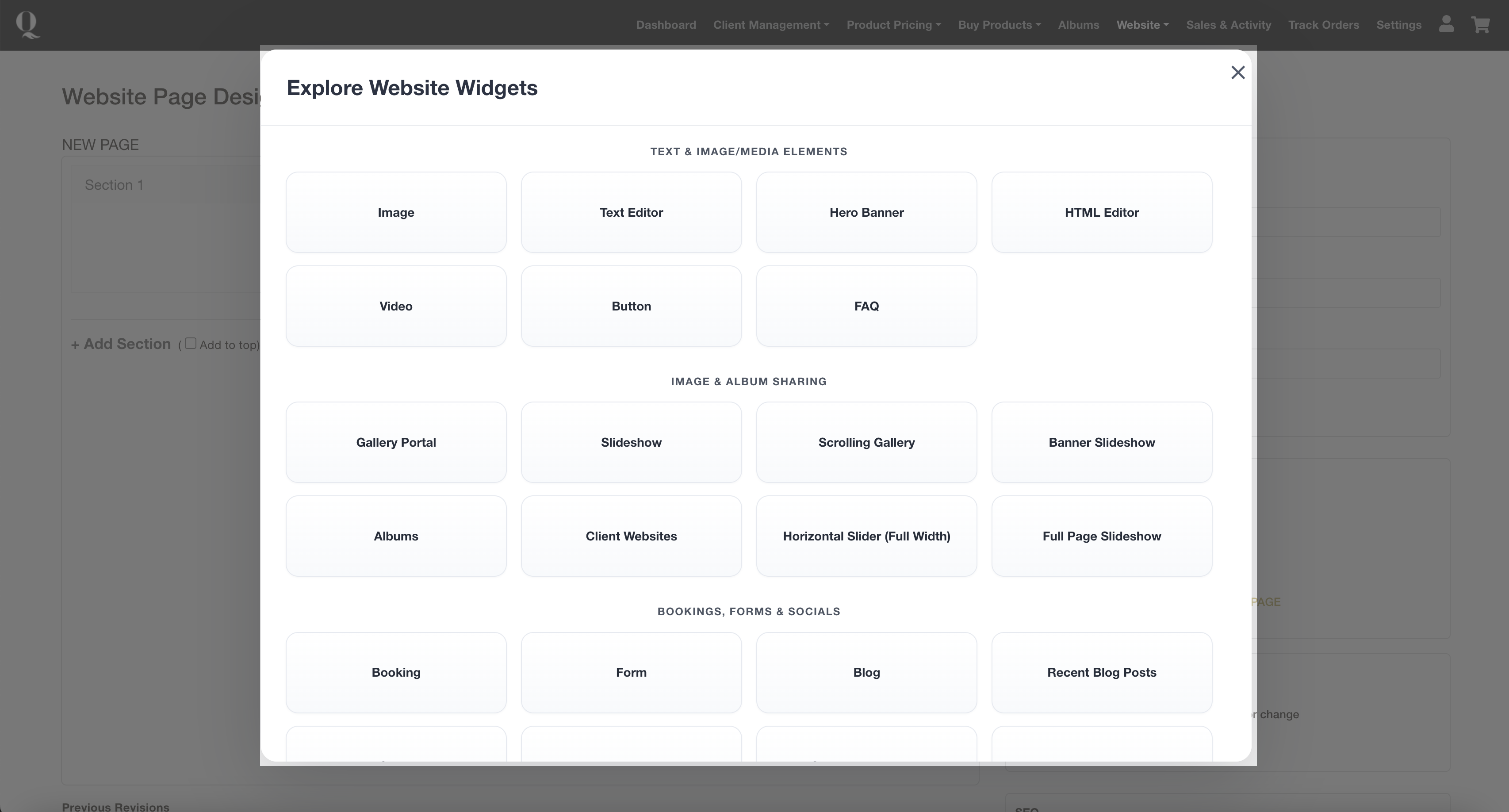
Below is an overview of the available widgets and how they are typically used.
Text & Image / Media Widgets
These widgets are used to add content and structure to your pages.
- Image: Add an image to your page
- Text Editor: Add and format text content
- Hero Banner: Create a full-width banner (ideal for headers or key sections)
- HTML Editor: Add custom HTML for embedding external content
- Video: Add a video from:
Media Library (Pro+ only)
YouTube
Vimeo
- Button: Add a call-to-action button (e.g. “Book Now”, “View Gallery”)
- FAQ: Add a collapsible FAQ section
Image & Album Sharing Widgets
These widgets are designed to showcase and share your work.
- Gallery Portal: Add one or multiple galleries to your page
- Slideshow: Create a slideshow from a gallery
- Scrolling Gallery: Embed a gallery directly into the page
- Banner Slideshow: Create a banner that rotates through gallery images
- Albums: Display an album design on your page
- Client Websites: Add a portal linking to client mini-sites
- Horizontal Slider: Full-width image slider using gallery images
- Full Page Slideshow: Display a full-page slideshow experience
Bookings, Forms & Social Widgets
These widgets help you capture enquiries and connect with clients.
- Self-Booking Packages: Allow clients to book sessions directly
- Forms: Add enquiry or contact forms
- Blog: Set where your blog will appear
- Recent Blog Posts: Display your latest blog entries
- Legacy Contact Form: Older Workspace contact form
- Feedback Form: Collect feedback from clients
- Social Media Icons: Add links to your social platforms
- Map: Embed a Google Maps section
Website Elements
These are simple structural elements used for branding and layout.
- Logo: Display your studio logo
- Company Name: Display your business name
- Content Divider: Add spacing or separation between sections
Other Widgets
Additional tools for specific use cases:
- School Login: Add a login box to your school/volume photography login portal
- Gallery Lightbox: Display images in a pop-up viewing experience


