
Once you've set up your gallery and selling tools, the next step is to organise how you manage your enquiries, clients, projects, and follow-up communication.
Workspace includes CRM features to help you keep track of your work and create a smoother client experience from enquiry through to delivery. This guide walks you through key steps to get started.
Recommended reading: End-to-End Workflow: From Enquiry to Delivery
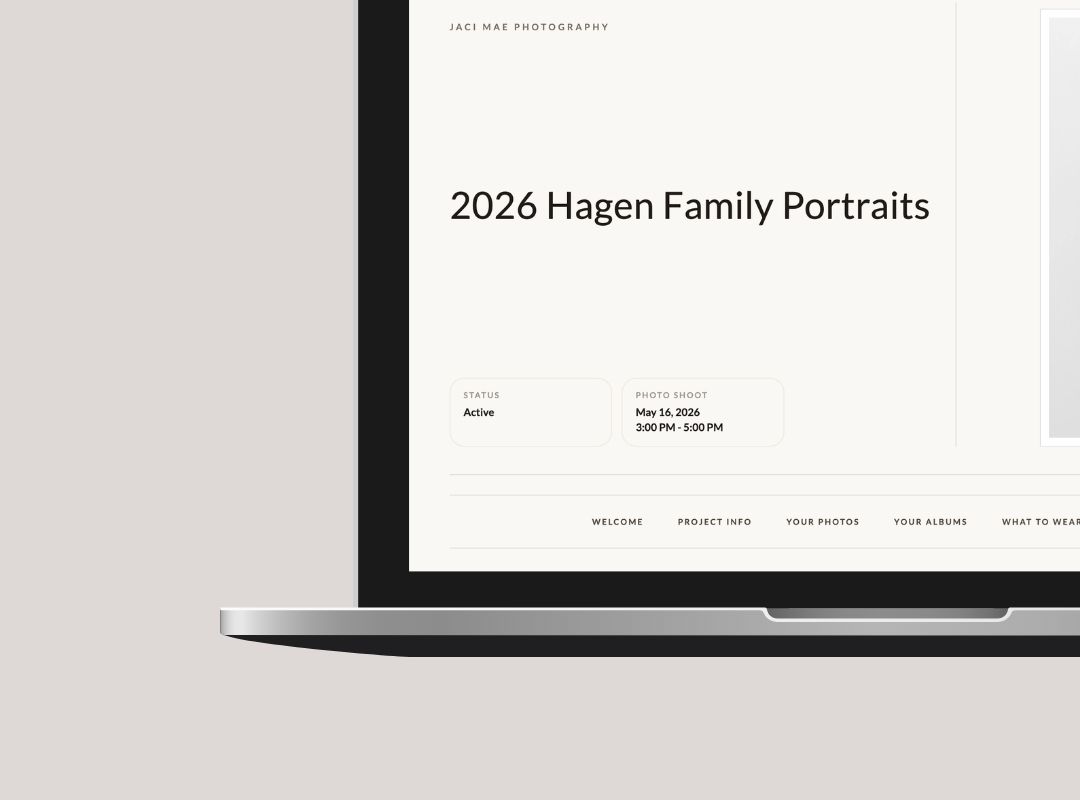
What You'll Set Up
In this guide, you'll learn how:
- Leads, Contacts, Clients, and Projects work together
- To organise your jobs inside Workspace
- To set up a simple workflow to manage client work
- To create your first Gallery Workflow and automate follow-up communications.
Before You Start
Before continuing, we recommend completing:
With those in place you're ready to set up the studio management side of Workspace.
Step 1: Understand How Your CRM Is Structured
Workspace helps you organise both your people (customers) and your jobs.
Here's a simple way to think about it:
- Lead — a new enquiry or potential client
- Contact — a person you're working with
- Client — an organisation or person you work with over time
- Project — the actual job or shoot
A typical workflow looks like this:
New Enquiry → Lead → Contact or Client → Project → Gallery → Follow-Up/Sales
Simple rule of thumb:
- Use a Contact for one-off jobs
- Use a Client for ongoing relationships
- Use a Project for each job, session, or shoot
Step 2: Decide How You Want to Organise Your Jobs
Before creating anything, decide how you'll use Workspace in your business.
For one-off jobs:
Use:
Lead → Contact → Project
This works well for:
- Mini sessions
- One-time portrait sessions
- Simple bookings
Where there are multiple jobs:
Use:
Lead → Client → Project
This works well for:
- Wedding clients, where you're also photographing their engagement, rehearsal dinner, etc
- Families that you photograph regularly
- Commercial clients
- Schools or organisations
Step 3: Start Creating Projects for Your Work
Projects are where the details for each job are stored.
A Project can hold everything related to that job, including:
- Gallery
- Communication
- Tasks and progress
- Invoices and deliverables
Best practice:
Create one project per shoot, booking, or job.
Examples:
- Smith Family Session
- Emma & Jack Wedding
- Autumn Mini Sessions
- ABC School Photo Day
Step 4: Link People and Projects
Once you've created a project, link it to the appropriate person record.
Use a Contact when:
- It's a one-time job
- You only need basic relationship tracking
Use a Client when:
- You expect repeat work
- You want one place to manage multiple projects over time
- You want them to have a client portal
This helps keep your workflow organised as your business grows.
Step 5: Use Galleries as Part of Your Workflow
Once a project is underway, your gallery becomes part of the full client journey—not just the delivery step.
A gallery can be used to:
- Deliver images and video
- Sell prints and products
- Trigger follow-up communication
- Encourage orders through reminders and expiry dates
This is where your CRM and gallery setups start working together.
Step 6: Set Up Your First Gallery Workflow
Gallery Workflows help automate your follow-up communication so you don't need to manually check in with every client.
To access Gallery Workflows:
- In Workspace, go to the top navigation menu
- Select Client Management
- Click Gallery Workflows
Step 7: Choose a Simple Workflow
The best way to begin is with a simple "follow-up" workflow for your gallery.
Recommended starter workflow:
- Gallery announcement email — sent when the gallery is ready
- Reminder email — sent a few days later
- Expiry reminder email — sent before the gallery closes
- Abandoned carts — sent when someone leaves products in their cart without completing their order
This creates a simple automated follow-up sequence that helps keep clients engaged and encourages orders.
Step 8: Create or Edit a Workflow
You can either:
- Use a template workflow, or
- Create your own
If using a template:
- Find a template that suits your process
- Click Copy to My Workflows
- Click Edit to make changes to it
If creating your own:
- Click Add Blank Workflow
- Enter your workflow details:
- Workflow Name
- Description
- Gallery Type
Step 9: Add and Review Workflow Actions
Once inside the workflow, review or create the automation steps you want to use.
Common actions include:
- Announcement emails
- Follow-up reminder emails
- Abandoned cart emails
- Expiry reminders
- Announcement banners inside the gallery
Best practice for getting started:
Keep it simple with 2-3 "touches", e.g.:
- Gallery ready
- Reminder
- Final reminder before expiry
Step 10: Customise Your Emails and Banners
For each email or banner, review and update:
- Name and description
- Trigger timing (when it is to activate)
- Subject line
- Heading
- Body content
- Call-to-action buttons
For banners, also set:
- Banner type
- Trigger timing
- Heading and text
- Style and placement
Step 11: Apply Your Workflow to Future Galleries
Once your workflow is set up, it can be reused on future galleries of the same type.
This helps you:
- Save time
- Keep your communication consistent
- Create a more professional client experience
Step 12: Start Simple and Improve Over Time
You do not need to build a complex CRM system on day one.
A strong starting setup is:
- A clear way to organise contacts, clients, and projects
- One project per job
- One gallery workflow with:
1) Announcement email
2) Reminder email
3) Expiry reminder
That's enough to start creating a much smoother workflow.
Why This Matters
Setting up your studio management tools helps you:
- Keep track of active work
- Stay organised as jobs increase
- Reduce manual follow-up
- Improve your client experience
- Increase the chances of completing sales
Next Steps
Once you've completed this setup, you can start refining your workflow with:
- Better pricing and packages
- More advanced gallery automations
- Stronger sales follow-up
- More polished client communication


