
Before you start
Before continuing, we recommend you complete:
Project Workflows
Wherever your business comes from — wedding coverages, for example — each job probably follows the same pattern. Which is where the power of Workflows comes from.
A Workflow is a form or template for setting up a new Project — so it becomes simply a matter of filling in things like names, dates, locations etc.
We've already seen how simple this is, so a Workflow's real value is that it's a checklist of everything you need to do to complete a Project. Everything is listed in logical order, and divided into "Task Groups", to make sure that nothing gets overlooked, behind schedule or double-booked. And once the dates of Events etc are added it also becomes a timeline, reflected also on your Calendar.Here’s a partial example for wedding coverages.
You can tweak a Workflow any time you like — simplifying it or adding new items. And depending on your business you’ll probably need more than one — one for weddings, perhaps, and another for family portraits. So you can select the one that matches the Project.
Workspace includes a few Workflow drafts that you can use as a starting point for your own, or just for ideas. They should definitely be edited to suit your own needs.
The Projects Window
The power of Workflows really shows up on the Projects window, This is a list of your Projects, but becomes much more than a list when you link your Projects to Workflows. It becomes a checklist, an instant snapshot of where each Project is up to. Workspace groups your Projects using your Workflows as headers — so for example all your weddings show up together. Here’s a Project listing for the wedding workflow described above.

Notice first that the headings match the Task Groups set up in the Workflow. You'll see also that the “Lead Management” tasks are "done". In other words the original enquiry has been validated, we’ve made sure that we’d be available, we’ve sent our wedding guide and prices, and scheduled a consultation. Which means an Event should have been created by now.
Notice we’ve also “penciled in” the wedding day shoot, BUT our Agreement hasn’t been signed — and no wonder, it looks like we haven’t even sent it, so this wedding coverage can’t yet be confirmed.
If nothing comes of the Project we can change its status to Cancelled to free up the Photo Shoot day on our Calendar.
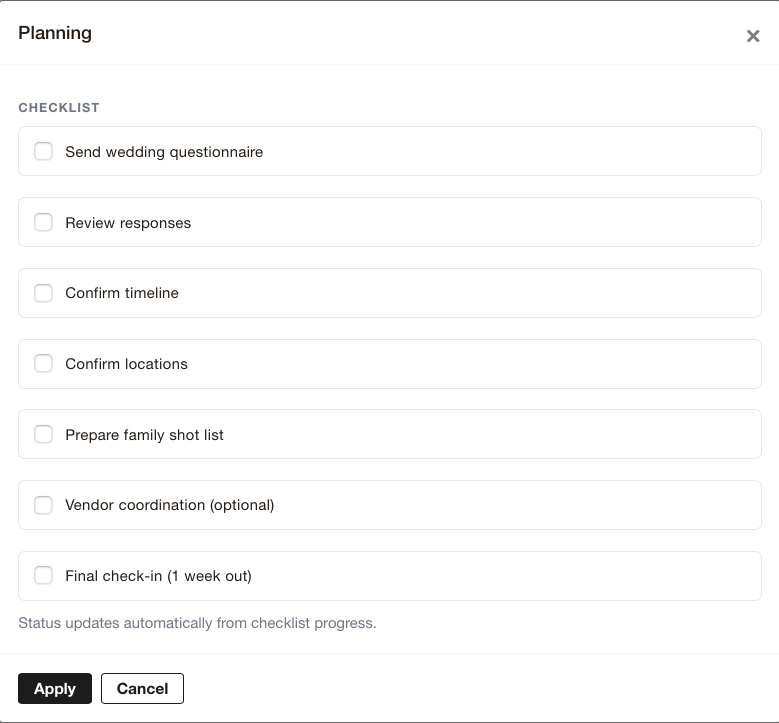
All the above we can see in an instant, and updating the data is equally efficient. Tasks, quotes, contracts, invoices etc created on the Project screen update the Workflow. So do Events and Contracts that have dates associated with them. Checklists open when clicked on so you can mark off items as they are completed.
Projects that haven’t been linked to a Workflow are updated the same way, but you will need to open them to check up on progress — and remember all those deadlines and things to do yourself!
Next Step: Client Portals


